AWS S3 Security Lab 3: The Credentialed User
This is the third lab in the AWS S3 Security series. It focuses on the most secure pattern: granting access only to specific authenticated users. The goal is to demonstrate that who you are (credentials) matters more than where you are.
Phase 1: Setup
As usual, I've created a bucket using a unique identifier generated via timestamp.

$TIMESTAMP = [int](Get-Date -UFormat %s)
$BUCKET_NAME = "lab-3-iam-lock-$TIMESTAMP"
aws s3 mb "s3://$BUCKET_NAME" --region eu-north-1
In the next step, I generated a test file to upload to the bucket.

aws s3 cp user-profile.txt "s3://$BUCKET_NAME/user-profile.txt" --region eu-north-1Verifying Access
First, I verified if the file is readable through the curl command:

curl "https://$BUCKET_NAME.s3.eu-north-1.amazonaws.com/user-profile.txt"The request failed. The curl command sends an unauthenticated HTTPS GET request directly to the S3 bucket's public endpoint, proving the bucket is not publicly accessible.
Next, I used the AWS CLI, which authenticates with configured AWS credentials.

aws s3 cp "s3://$BUCKET_NAME/user-profile.txt" ".\admin-download.txt" --region eu-north-1
Get-Content ".\admin-download.txt"
The AWS CLI sends a signed API request to S3 using configured credentials. S3 verifies the identity, confirms the IAM user has permission to read the object, and allows the download.
Phase 2: Creating a Restricted User
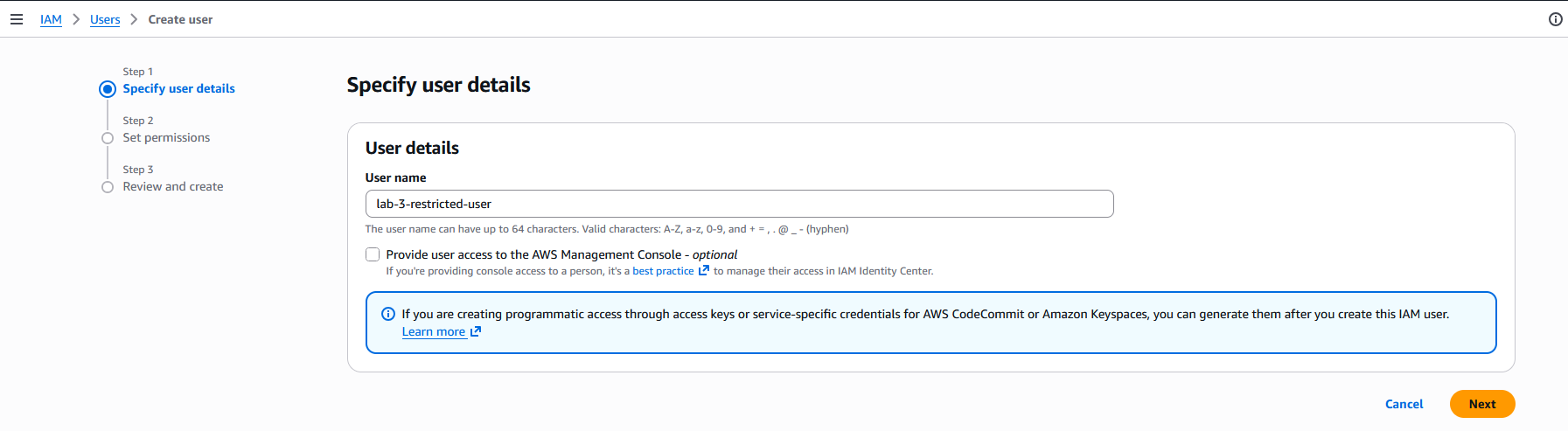
After logging into the Console, I navigated to the IAM Panel and created a user named lab-3-restricted-user.
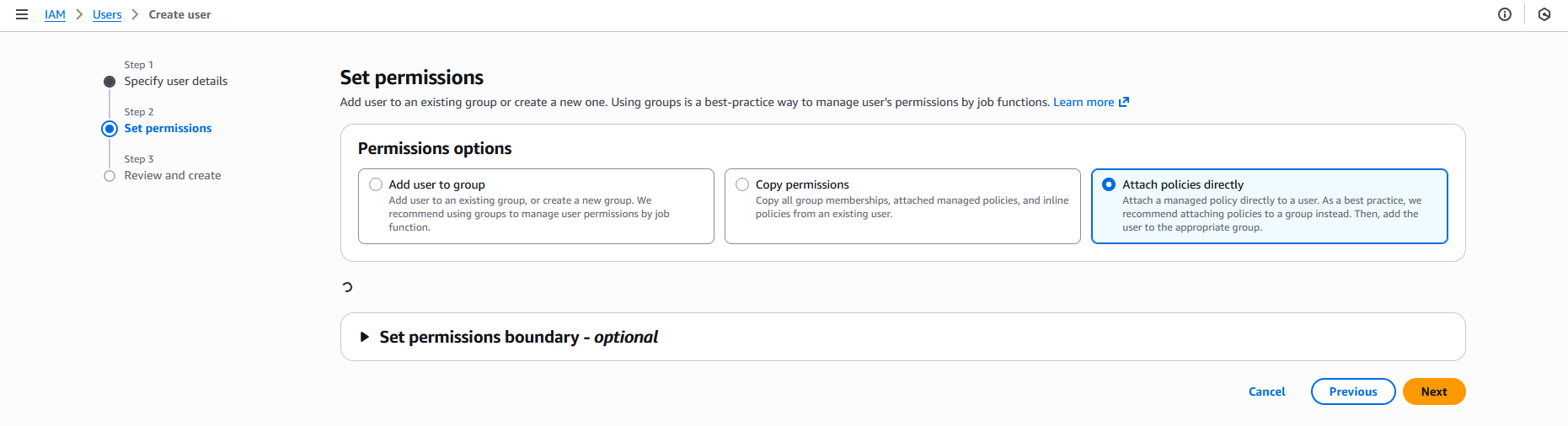
I left the permissions field blank:
The user was successfully created:

Note: I had to log into the root account to add IAMFullAccess permissions to my lab account before I could create new IAM users.
As the final step, I created access keys for this user:

Phase 3: Acting as a Restricted User
First, I configured a new CLI profile:
aws configure set aws_access_key_id $ACCESS_KEY_ID --profile restricted-user
aws configure set aws_secret_access_key $SECRET_ACCESS_KEY --profile restricted-user
aws configure set region eu-north-1 --profile restricted-user
aws configure set output json --profile restricted-user
After configuring the profile, I verified the new identity:
$IDENTITY = aws sts get-caller-identity --profile restricted-user | ConvertFrom-Json
$USER_ARN = $IDENTITY.Arn
$USER_ARN
Understanding the Commands
aws sts get-caller-identity calls the AWS STS (Security Token Service) API to return information about the IAM user or role whose credentials are being used.
--profile restricted-user tells AWS CLI to use credentials from the restricted-user profile in your local AWS config.
| ConvertFrom-Json converts the JSON output into a PowerShell object with properties:
$IDENTITY.UserId$IDENTITY.Account$IDENTITY.Arn
$USER_ARN = $IDENTITY.Arn extracts only the ARN (Amazon Resource Name) for later use.
| Line | Purpose | Result |
|---|---|---|
aws sts get-caller-identity |
Ask AWS "who am I?" under this profile | Returns account, user ID, and ARN |
ConvertFrom-Json |
Convert JSON to PowerShell object | Easier to access properties |
$IDENTITY.Arn |
Extract just the ARN | e.g., arn:aws:iam::... |
Add-Content ... lab-env.ps1 |
Save it in a reusable script | Lets you reimport later |
$USER_ARN |
Display ARN | Confirms your identity |
Testing Access
Now I'll check if the uploaded file is accessible using the aws s3 cp command:
aws s3 cp "s3://$BUCKET_NAME/user-profile.txt" ".\restricted-download.txt" --region eu-north-1 --profile restricted-user
Security is working as intended. The user has no permissions.
Phase 4: Fixing the Permissions
Creating a bucket policy:
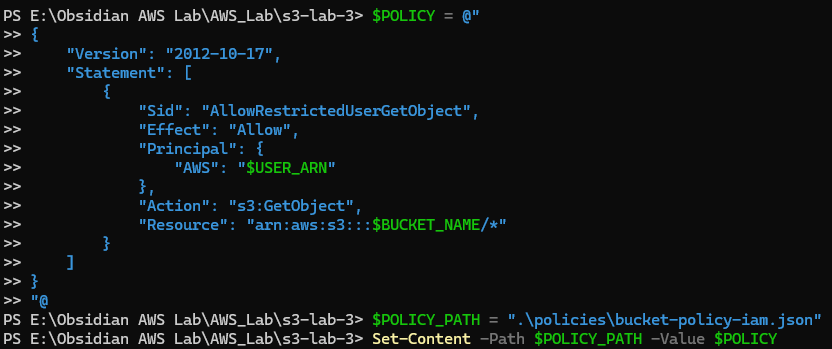
$POLICY = @"
{
    "Version": "2012-10-17",
    "Statement": [
        {
            "Sid": "AllowRestrictedUserGetObject",
            "Effect": "Allow",
            "Principal": {
                "AWS": "$USER_ARN"
            },
            "Action": "s3:GetObject",
            "Resource": "arn:aws:s3:::$BUCKET_NAME/*"
        }
    ]
}
"@

$POLICY_PATH = ".\policies\bucket-policy-iam.json"
Set-Content -Path $POLICY_PATH -Value $POLICY
Understanding the Policy
| Field | Meaning |
|---|---|
"Version": "2012-10-17" |
Standard policy version; always this value for AWS JSON policies |
"Statement" |
Main block that lists one or more permission rules |
"Sid" |
Statement ID (optional name for this rule) |
"Effect": "Allow" |
Grants permission rather than denying it |
"Principal": { "AWS": "$USER_ARN" } |
Identifies who gets the permission - here, the IAM user stored in $USER_ARN |
"Action": "s3:GetObject" |
Grants permission to download objects from the bucket |
"Resource": "arn:aws:s3:::$BUCKET_NAME/*" |
Applies this rule to all objects inside the specified bucket |
Applying the bucket policy:

Phase 5: Verification
Re-running the previously failed command:
aws s3 cp "s3://$BUCKET_NAME/user-profile.txt" ".\restricted-download.txt" --region eu-north-1 --profile restricted-user
Download succeeded!
Testing Permission Boundaries
List bucket:
aws s3 ls "s3://$BUCKET_NAME/" --profile restricted-user Result: Failed
Upload to bucket:
"Test" | Out-File "test-upload.txt"
aws s3 cp "test-upload.txt" "s3://$BUCKET_NAME/test-upload.txt" --profile restricted-user
Result: Failed
Delete object:
aws s3 rm "s3://$BUCKET_NAME/user-profile.txt" --profile restricted-user
Result: Failed
Phase 6: IAM Policy
This phase demonstrates the difference between a Bucket Policy (resource-based) and an IAM Policy (identity-based).
Key Differences
Bucket Policy:
- Attached to: The S3 bucket
- Has
Principalfield: Specifies who gets access - Use case: Granting cross-account access or centralizing permissions on the resource
IAM Policy:
- Attached to: The IAM user, role, or group
- No
Principalfield: Implicitly applies to the attached identity - Use case: Managing what a user can do
Remove the Bucket Policy
aws s3api delete-bucket-policy --bucket $BUCKET_NAME --region eu-north-1Verify access is denied again:
aws s3 cp "s3://$BUCKET_NAME/user-profile.txt" ".\test.txt" --profile restricted-userCreate an IAM Policy
$IAM_POLICY = @"
{
    "Version": "2012-10-17",
    "Statement": [
        {
            "Sid": "AllowGetObjectOnSpecificBucket",
            "Effect": "Allow",
            "Action": "s3:GetObject",
            "Resource": "arn:aws:s3:::$BUCKET_NAME/*"
        }
    ]
}
"@

$IAM_POLICY_PATH = ".\policies\user-iam-policy.json"
Set-Content -Path $IAM_POLICY_PATH -Value $IAM_POLICY
Note: No Principal field! This policy applies to whoever it's attached to.
Attach the IAM Policy to the User
aws iam put-user-policy --user-name lab-3-restricted-user --policy-name S3GetObjectPolicy --policy-document file://$IAM_POLICY_PATHTesting the Result
aws s3 cp "s3://$BUCKET_NAME/user-profile.txt" ".\iam-policy-download.txt" --region eu-north-1 --profile restricted-user
File was downloaded successfully!
Phase 7: Condition Blocks
This phase demonstrates adding conditional restrictions to policies by combining IAM authentication with IP-based access controls.
Remove the Old Policy
aws iam delete-user-policy --user-name lab-3-restricted-user --policy-name S3GetObjectPolicyCreate a Policy with IP Restrictions
$MULTI_FACTOR_POLICY = @"
{
    "Version": "2012-10-17",
    "Statement": [
        {
            "Sid": "AllowRestrictedUserFromSpecificIP",
            "Effect": "Allow",
            "Principal": {
                "AWS": "$USER_ARN"
            },
            "Action": "s3:GetObject",
            "Resource": "arn:aws:s3:::$BUCKET_NAME/*",
            "Condition": {
                "IpAddress": {
                    "aws:SourceIp": "$MY_IP/32"
                }
            }
        }
    ]
}
"@

$MULTI_POLICY_PATH = ".\policies\bucket-policy-multi-factor.json"
Set-Content -Path $MULTI_POLICY_PATH -Value $MULTI_FACTOR_POLICY
Apply the New Policy
aws s3api put-bucket-policy --bucket $BUCKET_NAME --policy file://$MULTI_POLICY_PATH --region eu-north-1Testing the Results
aws s3 cp "s3://$BUCKET_NAME/user-profile.txt" ".\multi-factor-test.txt" --region eu-north-1 --profile restricted-user
Access granted! The policy now requires both valid credentials and the correct source IP address.