Building My First Pwnagotchi: A Beginner's Journey into Wireless Security
Pwnagotchi is an AI-powered device inspired by the 1990s Tamagotchi digital pet. However, instead of feeding a virtual creature, this portable, battery-powered companion is specifically designed for wireless security research and ethical hacking.
At its core, Pwnagotchi combines nostalgic virtual pet concepts with practical Wi-Fi security testing. The device consists of a Raspberry Pi Zero with a Wi-Fi adapter, running custom software that employs machine learning techniques to capture Wi-Fi handshakes and analyze network security. It continuously monitors nearby Wi-Fi networks, captures handshake packets, and uses various algorithms to assess password strength.
What makes Pwnagotchi unique is its adaptive AI algorithms. The device learns from its experiences over time, optimizing its techniques and improving its success rate. It can even employ strategies like deauthentication attacks—temporarily disconnecting devices from a network to force reconnection—which increases the likelihood of capturing the data packets needed for security analysis.
Pwnagotchi has gained popularity among ethical hackers, security researchers, and enthusiasts interested in exploring wireless security and penetration testing. It serves as both an educational tool for learning about Wi-Fi vulnerabilities and a reminder of the importance of strong security practices.
Important Legal and Ethical Notice: Using Pwnagotchi or similar security tools for illegal or unauthorized activities is strictly prohibited and unethical. These devices should only be used for educational and lawful purposes, with proper authorization and consent. Always test only on networks you own or have explicit written permission to test.
Prerequisites
Before embarking on this project, here's what you'll need:
Hardware Requirements
- Raspberry Pi Zero W (or Zero WH with pre-soldered headers)
- Waveshare 2.13" e-Paper display (V3 recommended)
- MicroSD card (16GB or larger, Class 10 recommended)
- USB cable for data transfer and power
- Soldering iron and solder (if using Pi Zero W without headers)
- Multimeter (optional, for connection verification)
- Portable battery pack (for mobile operation)
![[IMG_20230508_181945resized 1.webp]]
Software Requirements
- Pwnagotchi image (latest release from official repository)
- SD card flashing tool (Balena Etcher or Raspberry Pi Imager)
- SSH client (PuTTY for Windows, or built-in terminal for Linux/Mac)
- Text editor for configuration files
Skill Level
- Basic understanding of Linux command line
- Familiarity with SSH and file navigation
- Basic soldering skills (if assembling from scratch)
- Understanding of networking concepts (helpful but not required)
Time Commitment
Expect to spend 3-5 hours on initial assembly and configuration, with additional time for troubleshooting and customization.
Soldering the Raspberry Pi Zero
As a beginner, assembling a Pwnagotchi seemed intimidating at first. My only prior experience with a soldering iron was a failed keyboard repair attempt, so I approached this project with a mixture of nerves and determination.
The Assembly Process
The Waveshare display connects to the Raspberry Pi Zero via the GPIO (General Purpose Input/Output) pins. If you purchased a Pi Zero W (without pre-soldered headers), you'll need to solder a 40-pin header to the board.
Here's what I did:
- Positioned the GPIO header on the Pi Zero, ensuring it was straight and flush with the board
- Soldered each of the 40 pins individually, working methodically from one end to the other
- Inspected each joint for proper solder flow and connections
I'll be honest—my soldering job wasn't as aesthetically pleasing as I'd hoped. Some joints looked blobby, others seemed barely there. But functionality matters more than appearance for a first attempt.
![[IMG_20230510_182343 1.webp]]
Verification
After soldering, I used a multimeter to verify my connections:
- Set the multimeter to continuity mode
- Tested each GPIO pin to ensure it connected properly to the header
- Checked for accidental solder bridges between adjacent pins
Looking back, I'm still not entirely certain this was the correct verification method, but it helped me catch one short circuit between pins that I was able to fix by removing excess solder.
Pro tip: If soldering intimidates you, purchase a Raspberry Pi Zero WH, which comes with pre-soldered headers. It costs only a few dollars more and saves considerable time and frustration.
Software Setup and Initial Configuration
With the hardware assembled, I flashed the latest Pwnagotchi image to my microSD card using Balena Etcher. The official Pwnagotchi documentation provides clear instructions for this process, including necessary configuration file edits before first boot.
Key configuration steps included:
- Setting the device hostname
- Configuring Wi-Fi credentials for potential updates
- Selecting the display type (waveshare_3 for the V3 model)
- Setting the device to AUTO mode for initial testing
Connecting Pwnagotchi to Windows PC
After assembling the hardware and flashing the software, the next challenge was establishing a connection between my Pwnagotchi and my Windows PC. I initially assumed this would be straightforward—plug in the USB cable and go. Unfortunately, reality had other plans.
The Driver Dilemma
I followed a helpful guide that suggested Windows would automatically detect the new USB Ethernet device. It didn't. The device appeared in Device Manager with a yellow warning icon, indicating missing drivers.
I attempted several solutions:
- Updated Windows to the latest version
- Checked my motherboard manufacturer's support page for chipset updates
- Searched Microsoft's driver catalog
None of these approaches resolved the issue. After hours of searching, I found a blog documenting the exact same project with a link to a driver installer specifically for USB Ethernet connectivity with Pwnagotchi.
A Word of Caution
Important security warning: Downloading executable files from unofficial sources poses significant risks. In my case, I was desperate after exhausting official channels, but this isn't a practice I can recommend without serious caveats.
If you find yourself in a similar situation:
- Scan any downloaded files with multiple antivirus tools
- Check the file hash against known good versions if available
- Consider using a virtual machine for initial testing
- Search for official Microsoft or manufacturer drivers first
I took the risk, scanned the file thoroughly, and fortunately encountered no malware. After installing the driver, Windows finally recognized my Pwnagotchi as a USB Ethernet device.
Success (Almost)
With the driver installed, I was able to SSH into my Pwnagotchi:
ssh pi@10.0.0.2The default password is typically raspberry, though you should change this immediately for security reasons.
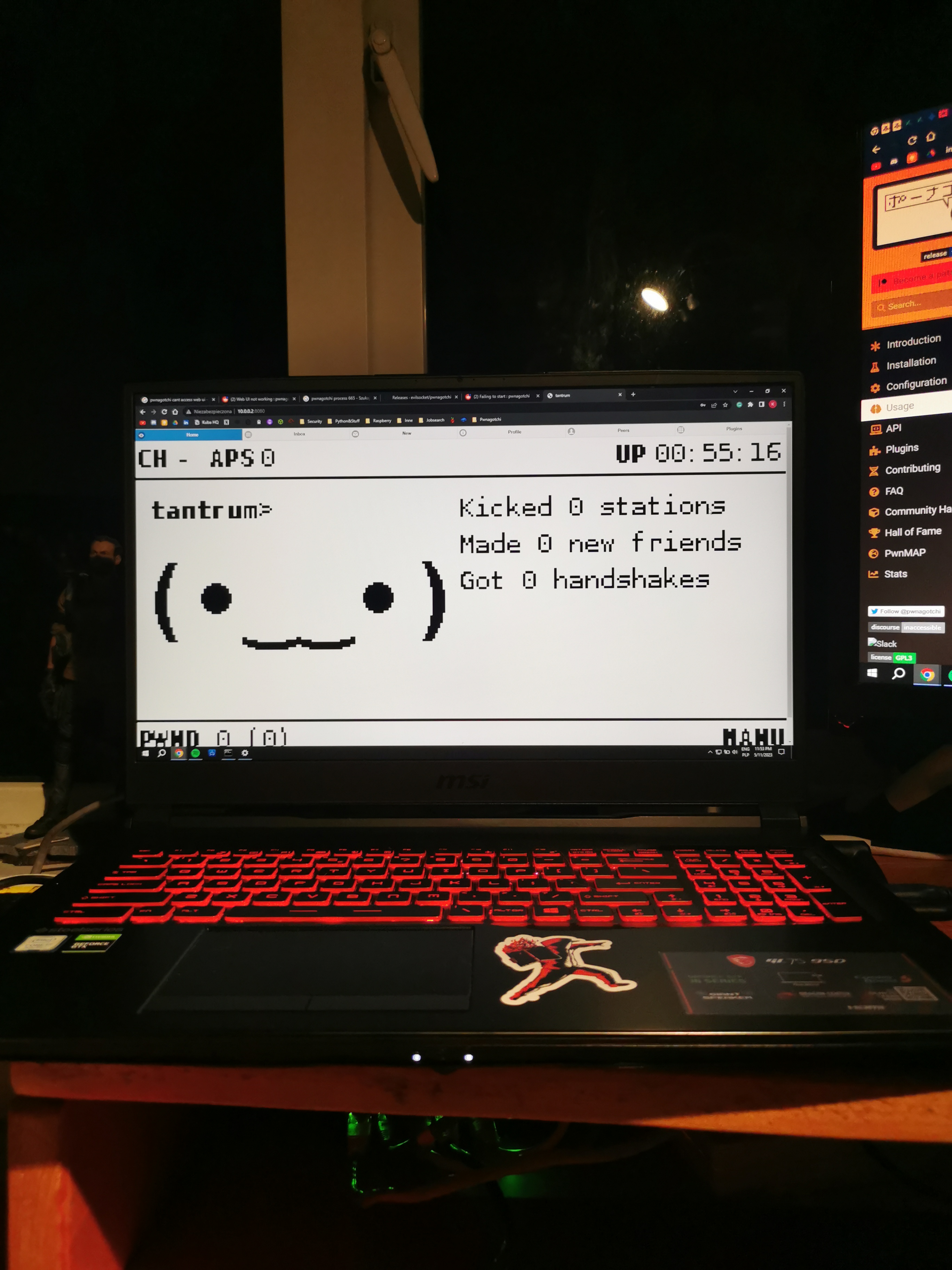
I could finally access the command line interface, but the Waveshare display still showed nothing but a blank screen. More troubleshooting lay ahead.
Making the Waveshare V3 Display Work
With SSH access established, I encountered my next major obstacle: the dreaded "display type not supported" error. This appeared whenever I attempted to start the Pwnagotchi service:
sudo systemctl status pwnagotchi.serviceThe Root of the Problem
The issue stemmed from Waveshare releasing a V3 revision of their 2.13" display that used different driver chips than previous versions. The standard Pwnagotchi image didn't include support for this newer hardware revision.
My initial assembly guide had promised a simple file update process, but accessing and modifying files on the root filesystem of the SD card proved anything but simple, especially from Windows.
Finding the Solution
I discovered a pre-configured image that supposedly included Waveshare V3 support, but it failed to work with my specific hardware revision. I realized I needed to make the updates manually.
After extensive searching, I found a helpful Reddit comment and a corresponding GitHub pull request that provided detailed instructions:
The Implementation
The fix required adding new driver files and updating configuration. Here's what I did via SSH:
- Created the necessary directory:
sudo mkdir -p /usr/local/lib/python3.7/dist-packages/pwnagotchi/ui/hw/libs/waveshare/v3- Added the V3 driver file:
sudo nano /usr/local/lib/python3.7/dist-packages/pwnagotchi/ui/hw/libs/waveshare/v3/epd2in13_V3.pyThen pasted the driver code from the GitHub commit.
- Updated the hardware configuration:
sudo nano /usr/local/lib/python3.7/dist-packages/pwnagotchi/ui/hw/waveshare3.pyModified the imports and initialization to use the new V3 driver.
- Configured config.toml:
sudo nano /etc/pwnagotchi/config.tomlSet ui.display.type = "waveshare_3"
- Rebooted the device:
sudo rebootAfter the reboot, the cute pixelated face of my Pwnagotchi finally appeared on the tiny e-paper display. It was a moment of genuine triumph after hours of troubleshooting.
Connecting to Parrot OS (The Easy Way)
After my struggles with Windows, I decided to test the connection on a Linux-based system. I installed Parrot OS (a security-focused Linux distribution) and attempted the same USB connection.
The difference was night and day. The entire process took approximately one minute.
The Simple Linux Process
- Connected the Pwnagotchi via USB
- Opened Network Manager
- Edited the USB Ethernet connection settings:
- Changed IPv4 method to "Shared to other computers"
- Alternatively, set manual IP: 10.0.0.1 with netmask 255.255.255.0
- Activated the connection
That was it. No driver hunting, no security risks from downloading random executables. Linux's built-in CDC Ethernet support handled everything automatically.
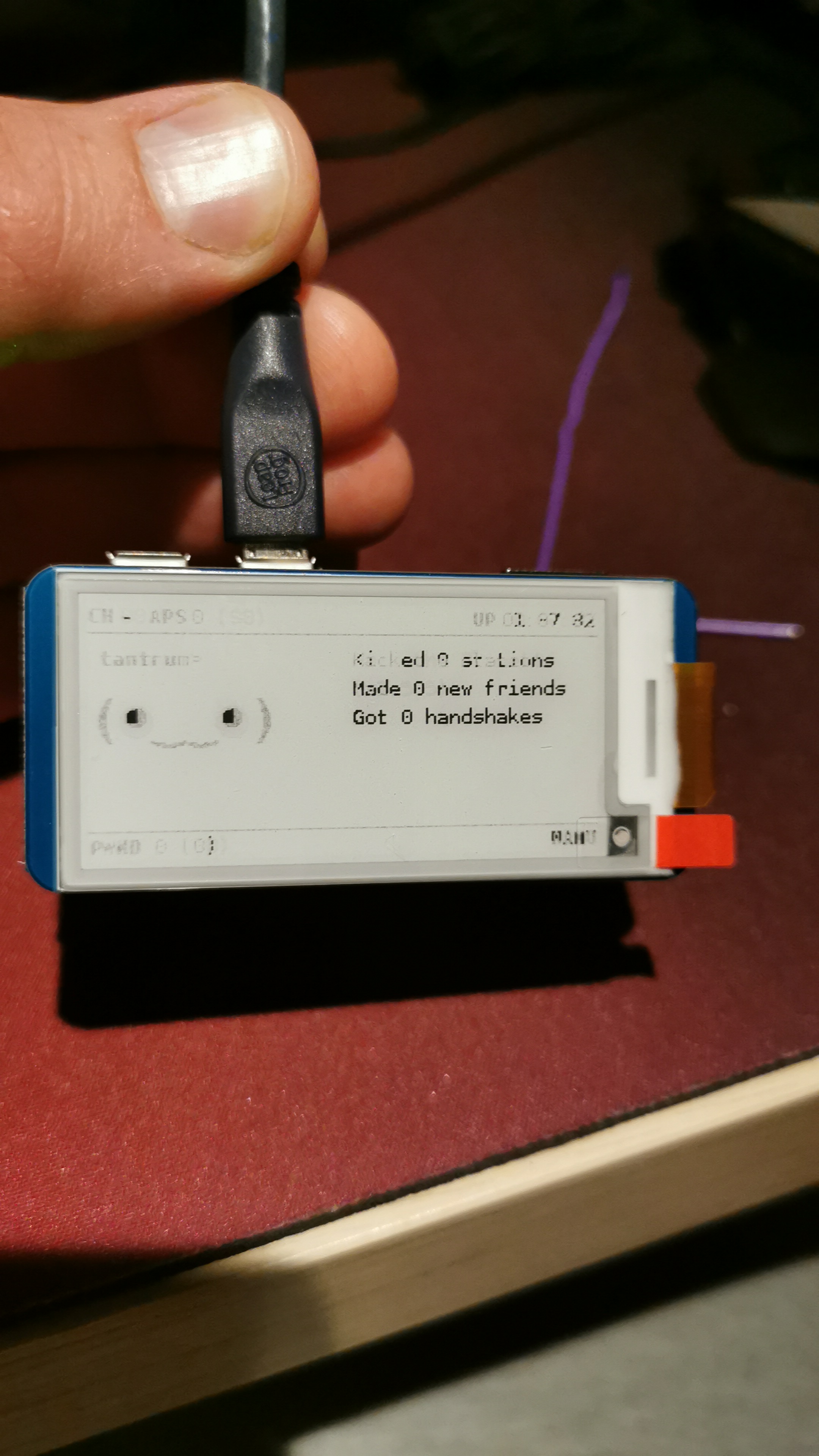
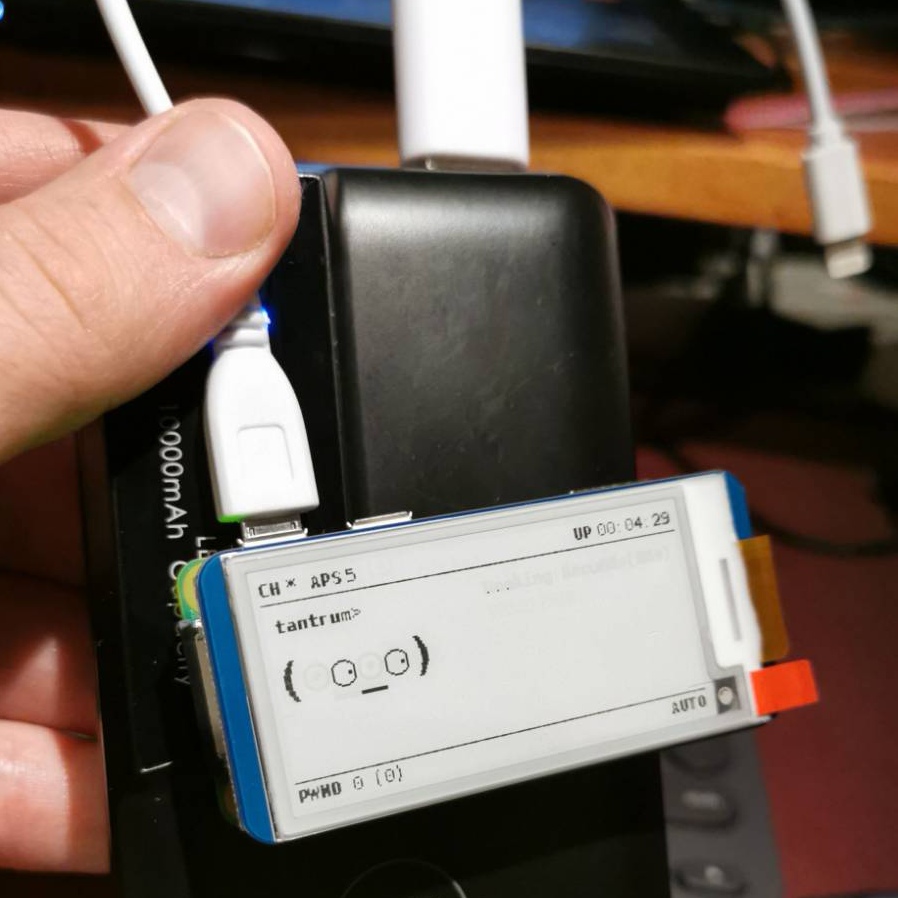 I found a concise video by NetworkChuck that demonstrates this process perfectly: NetworkChuck's Pwnagotchi Setup
Recommendation: If you have access to a Linux machine or can boot from a live USB, use Linux for initial Pwnagotchi setup and management. It will save you hours of frustration.
Collecting and Transferring Captured Handshakes
With everything configured and working, my Pwnagotchi began its primary function: capturing WPA/WPA2 handshakes from nearby Wi-Fi networks. After letting it run for several hours, I wanted to retrieve these captures for analysis.
Understanding What Was Captured
Pwnagotchi stores captured handshakes in /root/handshakes/ as .pcap files. Each file represents a four-way handshake captured from a specific network. These files can be analyzed with password-cracking tools like hashcat or aircrack-ng.
The Transfer Process
Here's how I transferred the files from my Pwnagotchi to my host machine:
Step 1: Compress the handshakes
SSH into your Pwnagotchi and create a compressed archive:
tar -zcvf handshakes.tar.gz /root/handshakesStep 2: Adjust permissions
I initially encountered a "permission denied" error when attempting the transfer. The solution was to modify ownership of the archive:
sudo chown pi:pi handshakes.tar.gz
sudo mv handshakes.tar.gz /home/pi/
Step 3: Transfer files to host machine
From your host machine (not from the Pwnagotchi), run the secure copy command:
scp pi@10.0.0.2:/home/pi/handshakes.tar.gz ~/Desktop/Step 4: Extract the archive
On your host machine:
tar -xzf handshakes.tar.gzTesting on My Own Network
To verify that the system worked, I tested it on my own Wi-Fi network (the only ethical and legal way to test). Using aircrack-ng with a custom wordlist containing my actual password, I successfully demonstrated that the captured handshake was valid and could be cracked given the right password dictionary.
Critical reminder: Only test on networks you own or have explicit written permission to test. Capturing handshakes from unauthorized networks is illegal in most jurisdictions.
Lessons Learned and Troubleshooting Tips
What Worked Well
- Linux compatibility: Using a Linux system eliminated most driver and connection issues
- Community resources: GitHub issues, Reddit threads, and blog posts were invaluable
- Persistence: Many problems required multiple attempts and creative problem-solving
Common Issues and Solutions
"Display type not supported" error:
- Verify your exact display model and revision
- Check for updated driver files specific to your hardware
- Ensure
config.tomlmatches your display type exactly
USB connection not recognized:
- Try different USB cables (some are power-only)
- On Linux, ensure the connection is set to "Shared" mode
- On Windows, verify drivers are properly installed in Device Manager
SSH connection refused:
- Confirm the Pwnagotchi has fully booted (wait 2-3 minutes)
- Verify your host machine's IP is in the correct subnet (10.0.0.x)
- Check that SSH is enabled in the Pwnagotchi configuration
No handshakes captured:
- Ensure you're in an area with active Wi-Fi networks
- Verify the Pwnagotchi is in AUTO or AI mode, not MANU
- Check that the Wi-Fi interface is functioning:
iwconfig - Be patient—capturing clean handshakes requires time and multiple connection attempts
Skills Developed
This project taught me:
- Practical soldering for electronics projects
- Linux system administration including file permissions and service management
- Network troubleshooting and USB device configuration
- Reading technical documentation and GitHub issues for problem-solving
- Wireless security concepts including handshake capture and analysis
Conclusion
Building a Pwnagotchi from scratch proved far more challenging than I anticipated, but also far more rewarding. What started as a simple idea—assemble a device, flash an image, and capture some handshakes—turned into a multi-day journey through soldering, driver hunting, configuration troubleshooting, and Linux system administration.
The most important lesson? Technology rarely works perfectly out of the box, especially in the intersection of hardware and software. Patience, research skills, and a willingness to try multiple approaches are essential.
Is It Worth It?
Absolutely, if you're interested in:
- Learning about wireless security in a hands-on way
- Understanding how WPA/WPA2 authentication works
- Developing practical electronics and Linux skills
- Having a conversation starter at security conferences
However, be prepared for troubleshooting. Budget extra time for unexpected issues, especially if using Windows as your primary platform.
Future Improvements
I plan to explore:
- Custom plugins for additional functionality
- Battery optimization for longer field operation
- Building a custom case to protect the hardware
- Integrating with cloud services for handshake analysis
- Experimenting with different display options
Final Thoughts
Pwnagotchi sits at the intersection of cybersecurity education, maker culture, and retro gaming nostalgia. It's a legitimate learning tool that teaches important concepts about wireless security, encryption, and network protocols. But it also serves as a reminder: if a small $50 device can capture your network handshakes this easily, using strong, unique passwords and updated security protocols isn't optional—it's essential.
Stay curious, stay ethical, and always hack responsibly.
Resources:
- Official Pwnagotchi Documentation
- Pwnagotchi GitHub Repository
- Waveshare Display Documentation
- NetworkChuck's Setup Video
Disclaimer: This article is for educational purposes only. Always obtain proper authorization before testing network security. Unauthorized access to computer networks is illegal and unethical.