CloudTrail: your AWS audit log foundation
AWS gives you an enormous amount of power over infrastructure — and without audit logging, you have no visibility into how that power is being used. CloudTrail is the service that fixes that. Every API call made in your account gets recorded: who called it, from where, and what it did.
This lab builds CloudTrail from the ground up. You'll set up the AWS CLI on WSL2, create a trail that writes logs to S3, deliberately generate some API activity, and then pull those logs apart with a short Python script.
Background: what CloudTrail actually is
Every action in AWS — creating a bucket, uploading a file, listing IAM users — happens through AWS's API. When you click a button in the AWS console, it's calling that same API under the hood. CloudTrail intercepts those calls and writes a record of each one.
Each record — called an event — captures:
- Who made the call (the IAM identity)
- What was called (the API action, like
CreateBucketorListUsers) - When it happened (timestamp in UTC)
- Where from (source IP address)
- What happened (request parameters and whether it succeeded or was denied)
CloudTrail separates events into two categories. Management events cover control-plane operations: creating and deleting resources, changing permissions, configuring services. These are logged by default when you enable a trail. Data events cover object-level operations inside a resource — things like GetObject on an S3 file or Invoke on a Lambda function. These are not logged by default and cost extra to enable. That distinction matters, and we'll come back to it.
The security angle
CloudTrail is one of the first things a security team looks at after an incident — and one of the first things a sophisticated attacker tries to disable or tamper with.
Consider what an attacker can do if they compromise an AWS access key. Without CloudTrail, they can enumerate IAM roles, access S3 buckets, spin up EC2 instances, and exfiltrate data — and you won't know until the AWS bill arrives. With CloudTrail, you have a timestamped record of every API call they made, including the failed ones from when they were probing permissions.
The failure modes are worth knowing upfront:
- No trail = no logs. CloudTrail doesn't log anything until you create a trail. A fresh AWS account has CloudTrail's event history UI (90 days, console only), but nothing written to durable storage.
- Single-region trails miss activity in other regions. If you create a trail in eu-west-1 and an attacker spins up resources in us-east-1, you see nothing.
- Data events are off by default. An attacker reading objects from your S3 bucket won't appear in logs unless you've explicitly enabled data event logging.
- Logs can be deleted. If your trail's S3 bucket isn't protected — no Object Lock, no restrictive policy — an attacker with sufficient permissions can delete the evidence.
This lab sets up a basic trail. As you build it, keep these gaps in mind — they're what you'd harden next.
Hands-on lab
Part A — WSL2 and AWS CLI setup
If you have the AWS CLI already installed and configured in WSL2, skip to Part B. If you're starting fresh, work through this section first.
Install AWS CLI v2 on Ubuntu (WSL2)
Open your Ubuntu terminal and run these commands one at a time:
# Download the AWS CLI v2 installer
curl "https://awscli.amazonaws.com/awscli-exe-linux-x86_64.zip" -o "awscliv2.zip"
# Install unzip if you don't have it
sudo apt update && sudo apt install unzip -y# Unzip the installer
unzip awscliv2.zip# Run the install script
sudo ./aws/install# Confirm the installation worked — you should see a version number
aws --version
Create an IAM user with programmatic access
Before configuring the CLI, you need an IAM user with an access key. Do this in the AWS console:
- Go to IAM → Users → Create user
- Give the user a name (e.g.
cloudtrail-lab) - On the permissions step, attach the
AdministratorAccesspolicy — this is fine for a personal lab account; you'd scope this down in a real environment - After the user is created, go to Security credentials → Create access key
- Choose Command Line Interface (CLI) as the use case
- Download or copy the Access key ID and Secret access key — you won't see the secret again
Configure the CLI
# This will prompt you for your key, secret, region, and output format
aws configure
Enter your values when prompted:
AWS Access Key ID [None]: AKIA...your key...
AWS Secret Access Key [None]: your secret key
Default region name [None]: eu-north-1
Default output format [None]: json
Your credentials are stored in ~/.aws/credentials. Verify the CLI is working:
# List your S3 buckets — returns an empty list if you have none, which is expected
aws s3 ls
Part B — Create an S3 bucket for CloudTrail logs
CloudTrail writes its log files to S3. You need a bucket before you can create a trail.
Bucket names are globally unique across all AWS accounts. Replace your-name with something distinctive — your username or a random string works fine.
# Create the bucket — swap eu-west-1 if you're using a different region
aws s3api create-bucket \
  --bucket cloudtrail-logs-your-name \
  --region eu-north-1 \
  --create-bucket-configuration LocationConstraint=eu-west-1
Block all public access on the bucket. CloudTrail log buckets should never be public:
aws s3api put-public-access-block \
  --bucket cloudtrail-logs-your-name \
  --public-access-block-configuration \
    "BlockPublicAcls=true,IgnorePublicAcls=true,BlockPublicPolicy=true,RestrictPublicBuckets=true"
Now attach a bucket policy that allows CloudTrail to write to it. CloudTrail needs explicit permission — it won't write to an arbitrary bucket.
Create the policy file first:
# Create the policy JSON file in your home directory
cat > ~/cloudtrail-bucket-policy.json << 'EOF'
{
  "Version": "2012-10-17",
  "Statement": [
    {
      "Sid": "AWSCloudTrailAclCheck",
      "Effect": "Allow",
      "Principal": {
        "Service": "cloudtrail.amazonaws.com"
      },
      "Action": "s3:GetBucketAcl",
      "Resource": "arn:aws:s3:::cloudtrail-logs-kuba"
    },
    {
      "Sid": "AWSCloudTrailWrite",
      "Effect": "Allow",
      "Principal": {
        "Service": "cloudtrail.amazonaws.com"
      },
      "Action": "s3:PutObject",
      "Resource": "arn:aws:s3:::cloudtrail-logs-kuba/AWSLogs/*",
      "Condition": {
        "StringEquals": {
          "s3:x-amz-acl": "bucket-owner-full-control"
        }
      }
    }
  ]
}
EOF
Apply the policy:
aws s3api put-bucket-policy \
  --bucket cloudtrail-logs-kuba \
  --policy file://~/cloudtrail-bucket-policy.json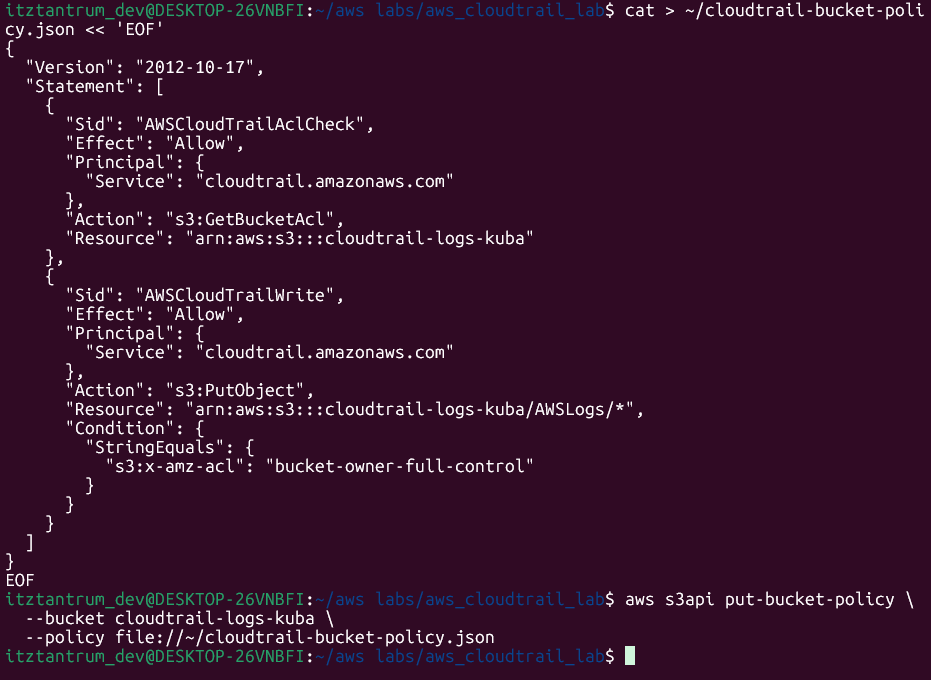
Part C — Enable a CloudTrail trail
With the bucket ready, create the trail. The --is-multi-region-trail flag tells CloudTrail to capture API activity across all AWS regions, not just your default one — this is what you want in practice.
aws cloudtrail create-trail \
  --name my-lab-trail \
  --s3-bucket-name cloudtrail-logs-kuba \
  --is-multi-region-trail
Creating the trail doesn't start logging yet. Start it explicitly:
aws cloudtrail start-logging --name my-lab-trail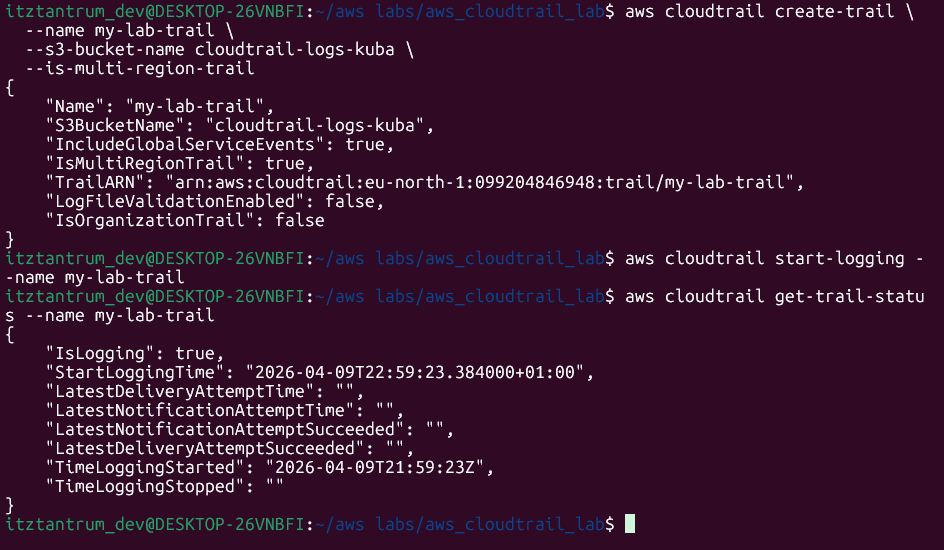
Confirm it's active:
aws cloudtrail get-trail-status --name my-lab-trailPart D — Generate API traffic
A fresh trail with no activity isn't very interesting. Generate some deliberate API calls so there's something to find in the logs.
S3 activity
# Create a second bucket to work with
aws s3api create-bucket \
  --bucket lab-test-bucket-kuba \
  --region eu-west-1 \
  --create-bucket-configuration LocationConstraint=eu-north-1

# Upload a small test file
echo "This is a test file for the CloudTrail lab" > ~/testfile.txt
aws s3 cp ~/testfile.txt s3://lab-test-bucket-your-name/testfile.txt

# List the bucket contents
aws s3 ls s3://lab-test-bucket-your-name/

# Delete the file
aws s3 rm s3://lab-test-bucket-your-name/testfile.txt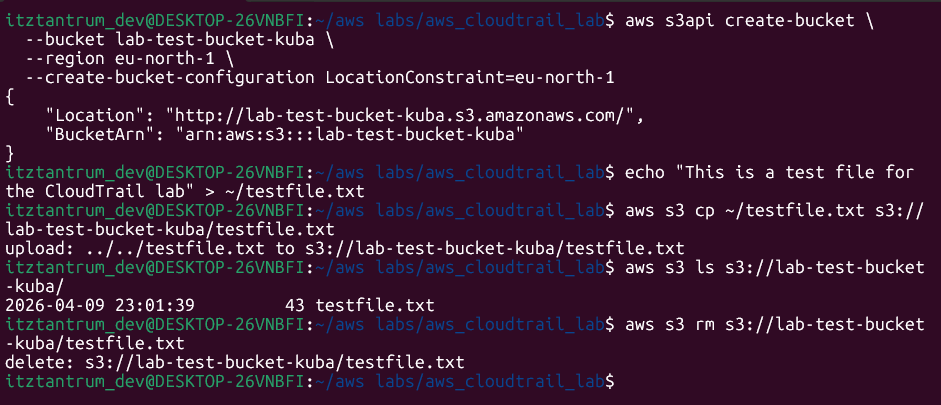
IAM activity
# List IAM users — a common reconnaissance action
aws iam list-users

# List IAM policies attached to your own user (swap cloudtrail-lab for your username)
aws iam list-attached-user-policies --user-name cloudtrail-lab

# Attempt something that will be denied — trying to create a new IAM user
# If you're using AdministratorAccess this will succeed, not fail — that's fine,
# the point is to generate the event, not the error
aws iam create-user --user-name test-recon-user

# Clean it up immediately
aws iam delete-user --user-name test-recon-user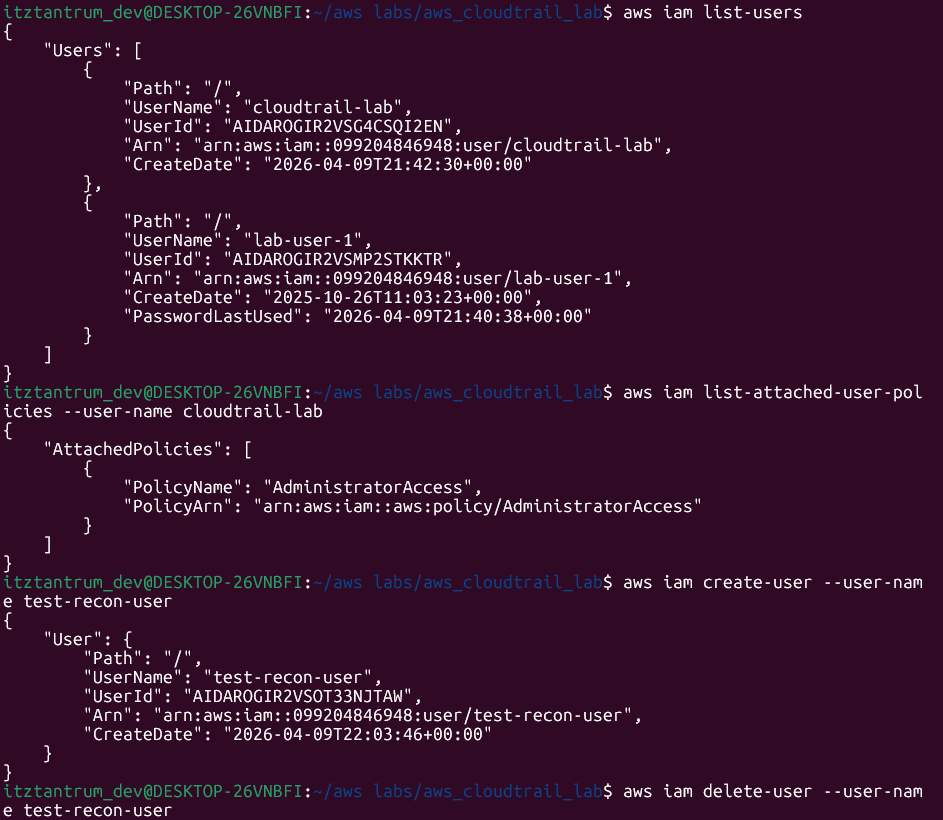
Part E — Query logs with the CLI
While you're waiting for the S3 delivery, you can query recent events directly through the CloudTrail API. This pulls from the last 90 days of event history:
# Show the 10 most recent management events
aws cloudtrail lookup-events \
--max-results 10 \
--query 'Events[*].{Time:EventTime, User:Username, Event:EventName, Source:EventSource}'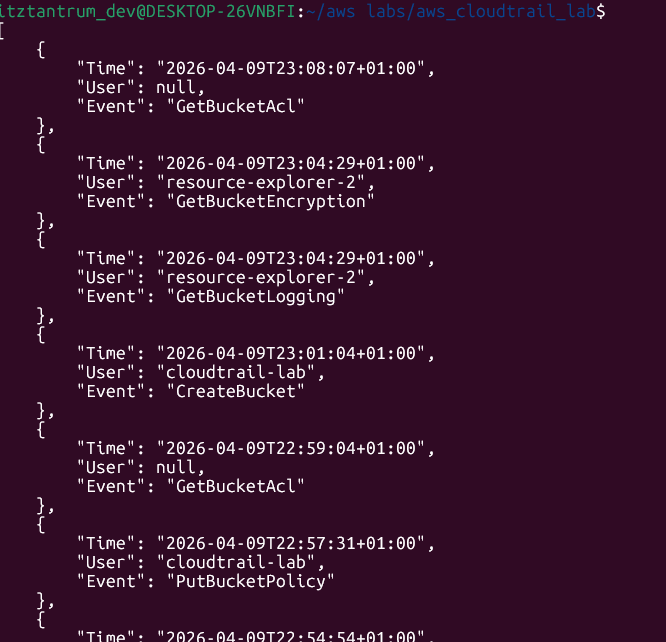 Filter to show only S3-related events:
aws cloudtrail lookup-events \
  --lookup-attributes AttributeKey=EventSource,AttributeValue=s3.amazonaws.com \
  --max-results 20 \
  --query 'Events[*].{Time:EventTime, User:Username, Event:EventName}'
Filter to show IAM events only:
aws cloudtrail lookup-events \
  --lookup-attributes AttributeKey=EventSource,AttributeValue=iam.amazonaws.com \
  --max-results 20 \
  --query 'Events[*].{Time:EventTime, User:Username, Event:EventName}'
You should see your CreateBucket, PutObject, DeleteObject, ListUsers, CreateUser, and DeleteUser calls appearing in the results.
Part F — Parse CloudTrail logs with Python
Once the logs have been delivered to S3 (allow 15–20 minutes), you can download and parse them directly.
Install boto3
# Install boto3 — the AWS SDK for Python
pip3 install boto3
Find your log files
CloudTrail writes logs to a structured prefix path inside your bucket:
AWSLogs/{account-id}/CloudTrail/{region}/{year}/{month}/{day}/List what's been delivered so far:
# Get your account ID first
aws sts get-caller-identity --query Account --output text
# List the CloudTrail log files
aws s3 ls s3://cloudtrail-logs-kuba/AWSLogs/ --recursiveParse the logs
Create the script:
# Create the script file
nano ~/parse_cloudtrail.py
Paste in this code:
import boto3
import gzip
import json

# --- Configuration ---
# Replace these with your actual bucket name and one of the log file keys
# from the aws s3 ls output above
BUCKET_NAME = "cloudtrail-logs-your-name"
LOG_KEY = "AWSLogs/YOUR_ACCOUNT_ID/CloudTrail/eu-west-1/YYYY/MM/DD/YOUR_LOG_FILE.json.gz"

# Connect to S3 using the credentials in ~/.aws/credentials
s3 = boto3.client("s3")

# Download the log file into memory
response = s3.get_object(Bucket=BUCKET_NAME, Key=LOG_KEY)

# CloudTrail log files are gzip-compressed JSON — decompress and parse
raw = gzip.decompress(response["Body"].read())
log_data = json.loads(raw)

# Each log file contains a list of records under the "Records" key
events = log_data.get("Records", [])

print(f"Found {len(events)} events in this log file\n")
print(f"{'Time':<30} {'User':<25} {'Action':<40} {'Source IP'}")
print("-" * 110)

# Loop through each event and print the fields we care about
for event in events:
    # eventTime: when it happened
    time = event.get("eventTime", "unknown")

    # userIdentity: who made the call — can be a user, role, or service
    identity = event.get("userIdentity", {})
    user = identity.get("userName") or identity.get("sessionContext", {}).get(
        "sessionIssuer", {}
    ).get("userName", identity.get("type", "unknown"))

    # eventName: the API action that was called
    action = event.get("eventName", "unknown")

    # sourceIPAddress: where the call came from
    source_ip = event.get("sourceIPAddress", "unknown")

    print(f"{time:<30} {user:<25} {action:<40} {source_ip}")
Run the script:
python3 ~/parse_cloudtrail.py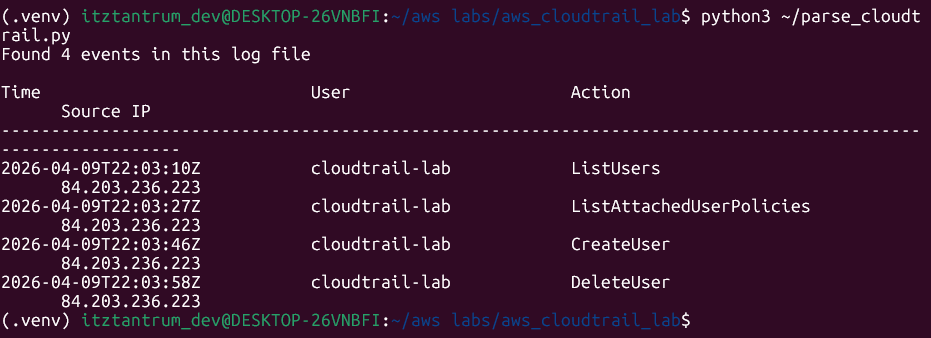
Clean up
Delete the test bucket and trail when you're done to avoid any ongoing costs:
# Delete the test bucket (must be empty first)
aws s3 rb s3://lab-test-bucket-your-name --force

# Stop the trail
aws cloudtrail stop-logging --name my-lab-trail

# Delete the trail
aws cloudtrail delete-trail --name my-lab-trail
What CloudTrail misses
This is the part most beginner guides skip.
Management events — creating buckets, changing IAM policies, launching instances — are logged when you enable a trail. But data events are not. That means:
- An attacker reading files from your S3 bucket (
GetObject) won't appear in your logs unless you've enabled S3 data events on that trail. - Lambda function invocations aren't logged by default.
- DynamoDB read/write operations aren't logged by default.
Enabling data events costs money — roughly $0.10 per 100,000 events — but for sensitive buckets (anything containing credentials, PII, or backups), the visibility is worth it.
There's also a more subtle gap: CloudTrail logs API calls, not the contents of those calls. You'll see that someone called PutObject and uploaded a file, but you won't see what was in the file. For that level of visibility, you need something like Macie (for S3 content scanning) layered on top.
Key takeaways
- CloudTrail records every AWS API call — who made it, what it was, when, and from where. Without a trail writing to S3, that data isn't durably stored.
- Management events (control-plane) are logged by default; data events (object-level) are not. That gap is significant for incident response.
- A trail needs an S3 bucket with a specific bucket policy before CloudTrail can write to it — the policy is non-optional.
lookup-eventsgives you fast CLI access to recent history; the S3 log files give you the full raw JSON for deeper analysis.- CloudTrail logs are only as useful as your ability to query them. The Python script here is the floor, not the ceiling — tools like Athena, OpenSearch, or a SIEM sit on top of the same S3 data.